> ## Documentation Index
> Fetch the complete documentation index at: https://support.blackbirdsec.eu/llms.txt
> Use this file to discover all available pages before exploring further.
# Navigation
> Learn to navigate around BLACKBIRD Pentesting Suite
## Navigation
Learn how to navigate around BLACKBIRD Pentesting Suite
### Main Sections
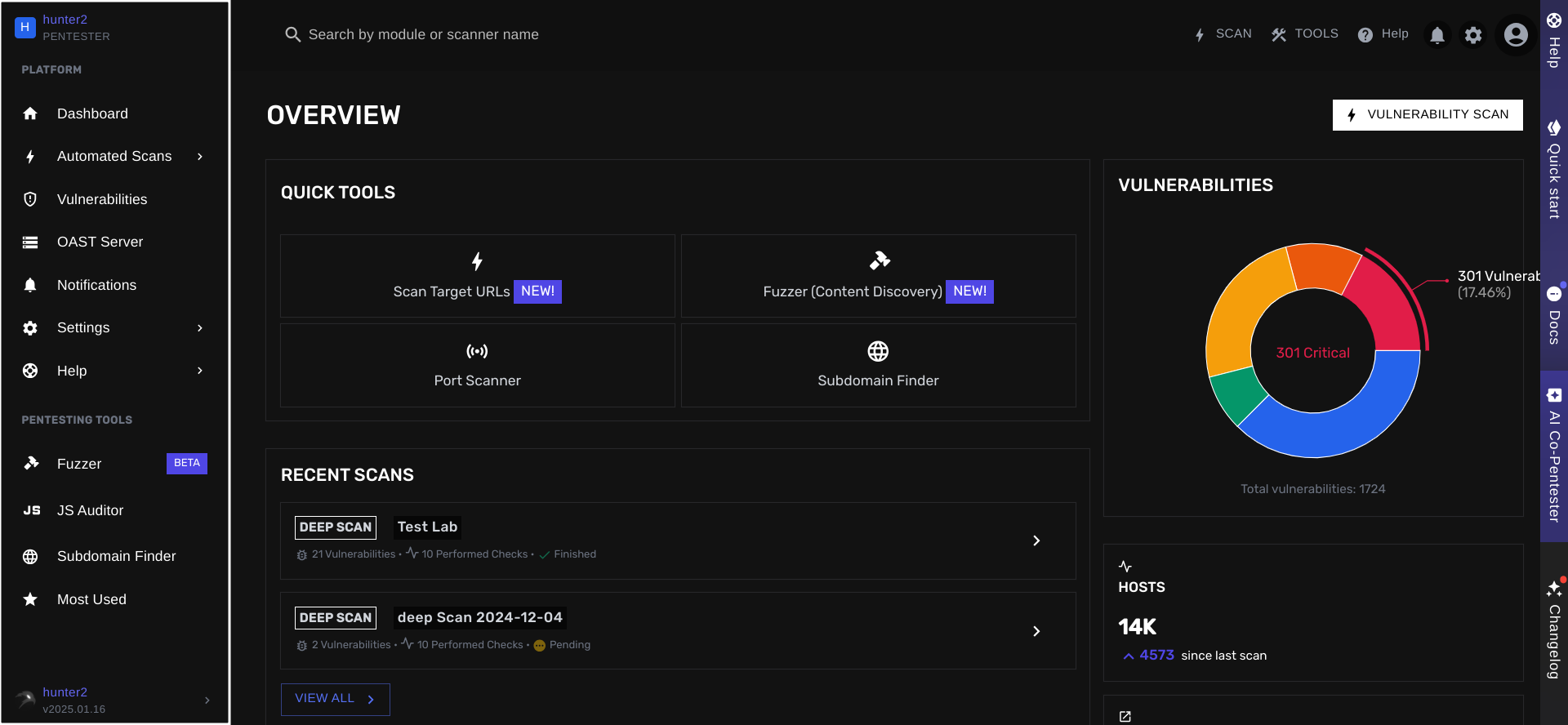
Your screen is divided into 3 main sections. Your **left-hand side navigation bar**, your **top navigation bar**, and your **right-hand side help bar**.
**1. The left-hand side navigation bar**
This navigation bar can help you quickly move around and open the tools you need.
 **2. The top bar**
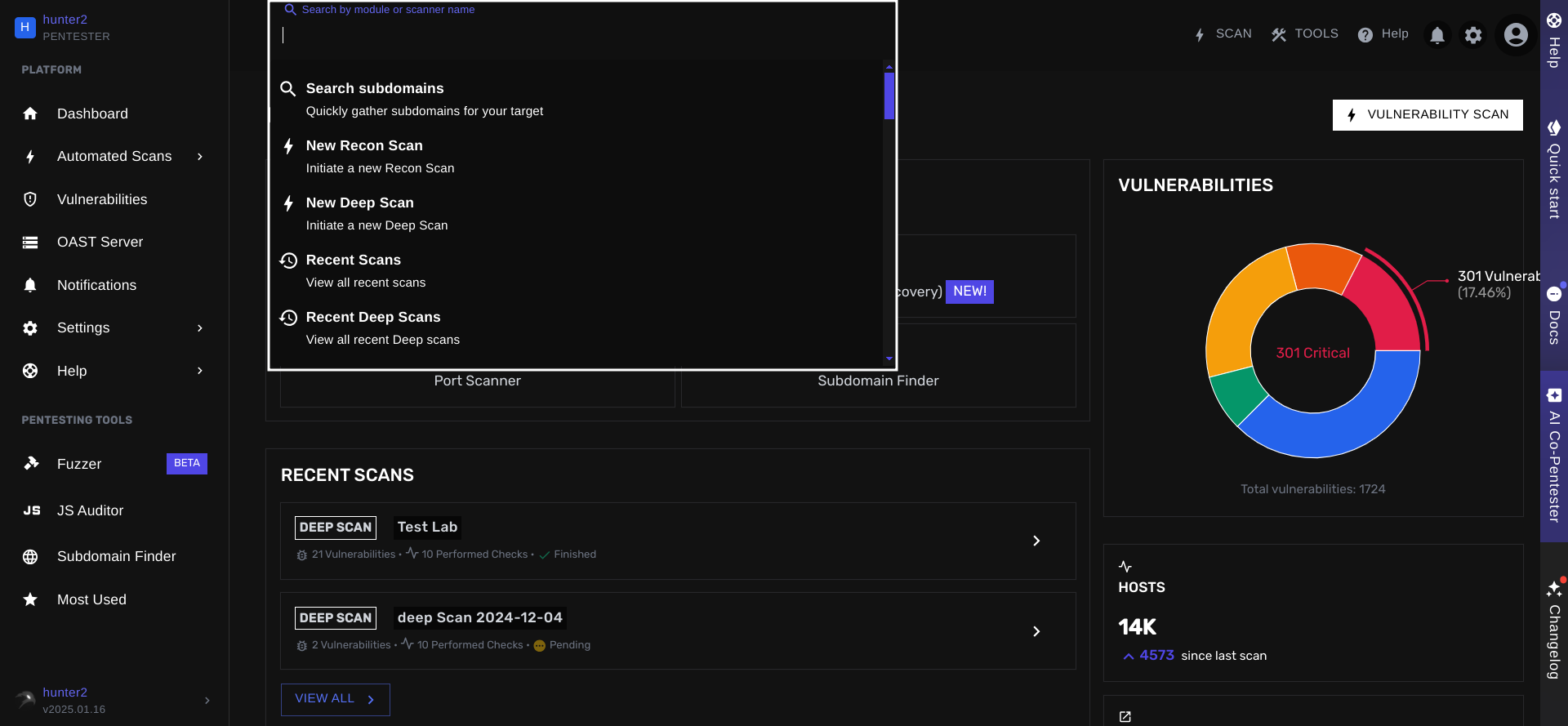
This bar has a search bar for you to quickly navigate to any section of the platform.
**2. The top bar**
This bar has a search bar for you to quickly navigate to any section of the platform.
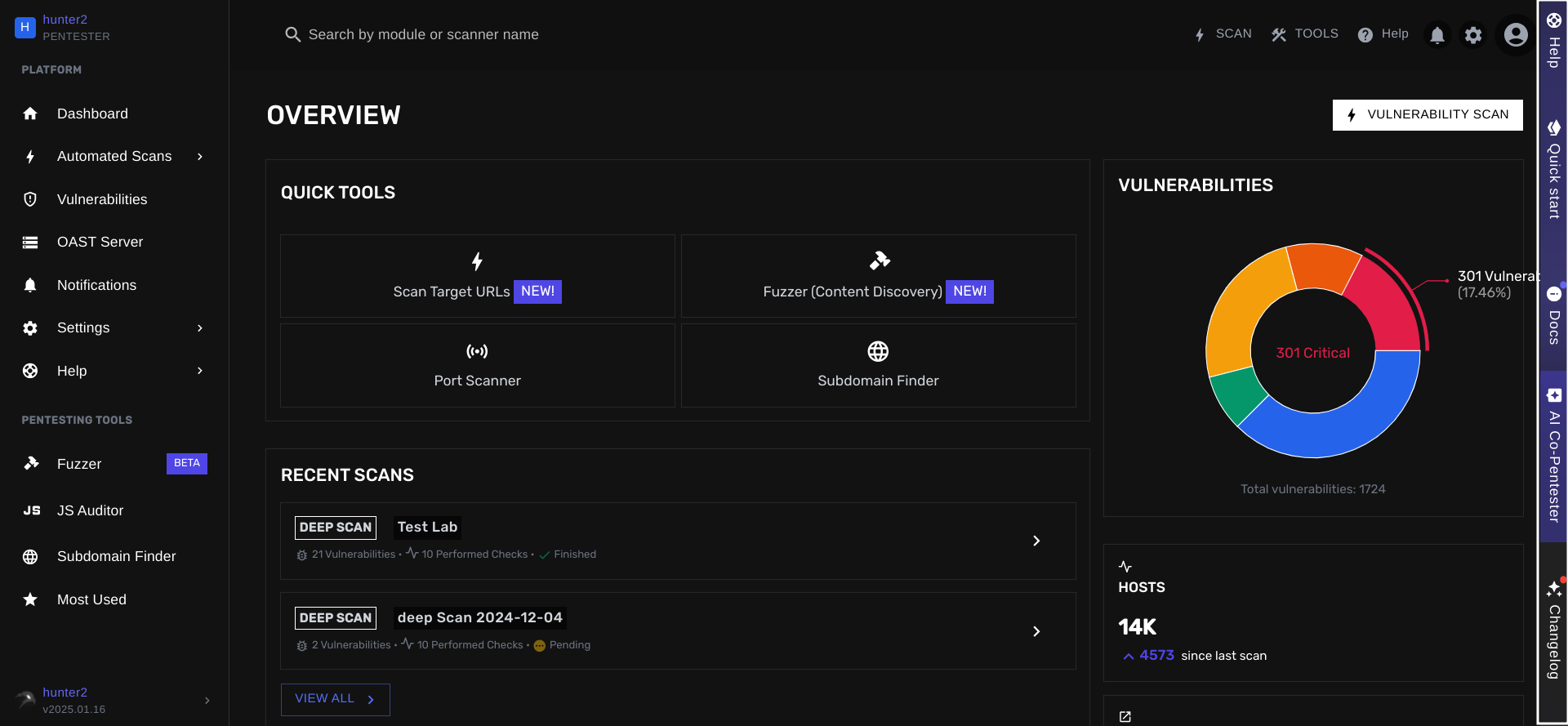
 **3. The right-hand side help bar**
This help bar provides your quick access to your AI Co-Pentester, Help resources, Quick start & guides and the changelog.
**3. The right-hand side help bar**
This help bar provides your quick access to your AI Co-Pentester, Help resources, Quick start & guides and the changelog.
 ### Tool Menu
To make it even easier to easily switch between tools, we've introduced a customizable **Tool Menu**.
This Tool Menu can be located at your top navigation bar (next to your search bar). Opening the menu will present you with quick access to your most favorite tools.
### Tool Menu
To make it even easier to easily switch between tools, we've introduced a customizable **Tool Menu**.
This Tool Menu can be located at your top navigation bar (next to your search bar). Opening the menu will present you with quick access to your most favorite tools.
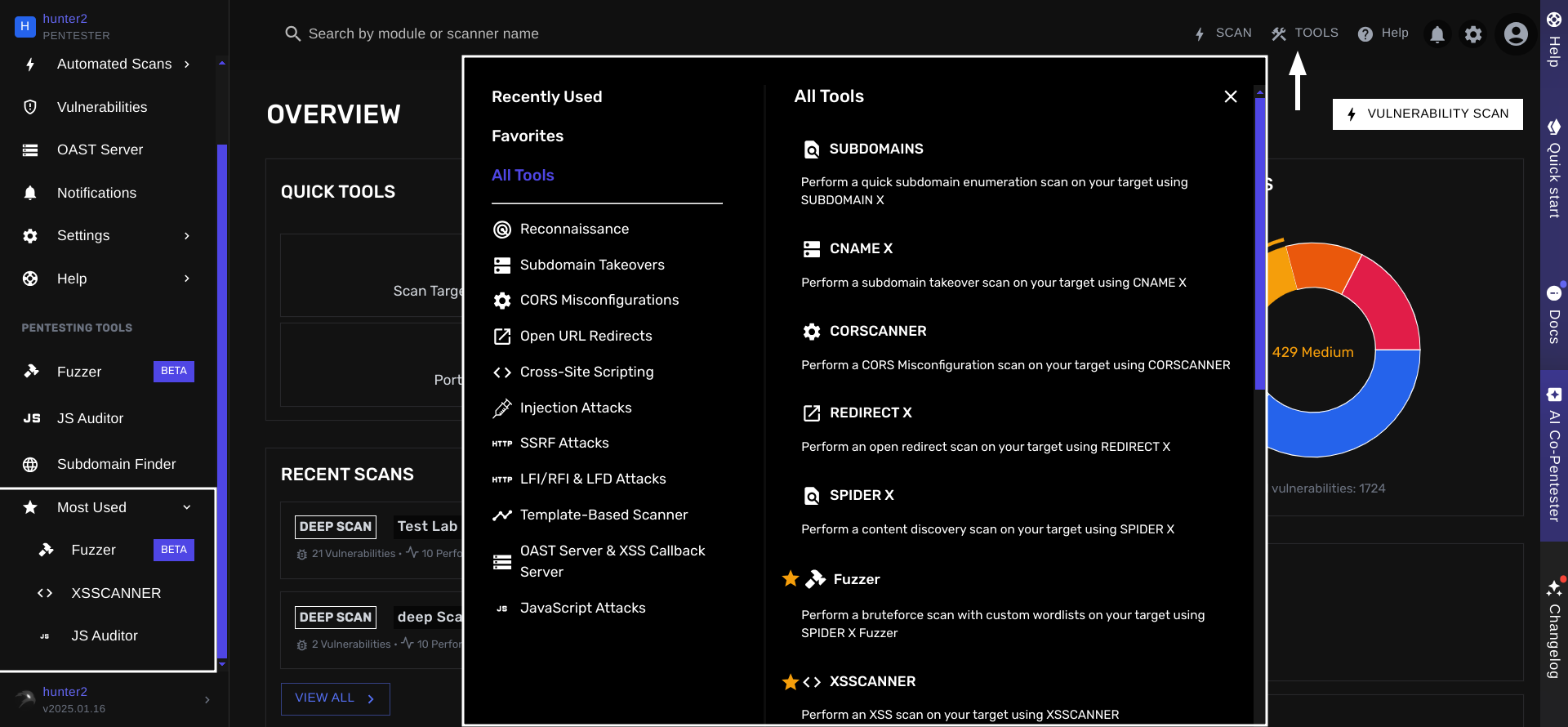 Marking the tool as favorite will make them appear in the left side navigation bar under "Most Used" section.
### Dashboard overview
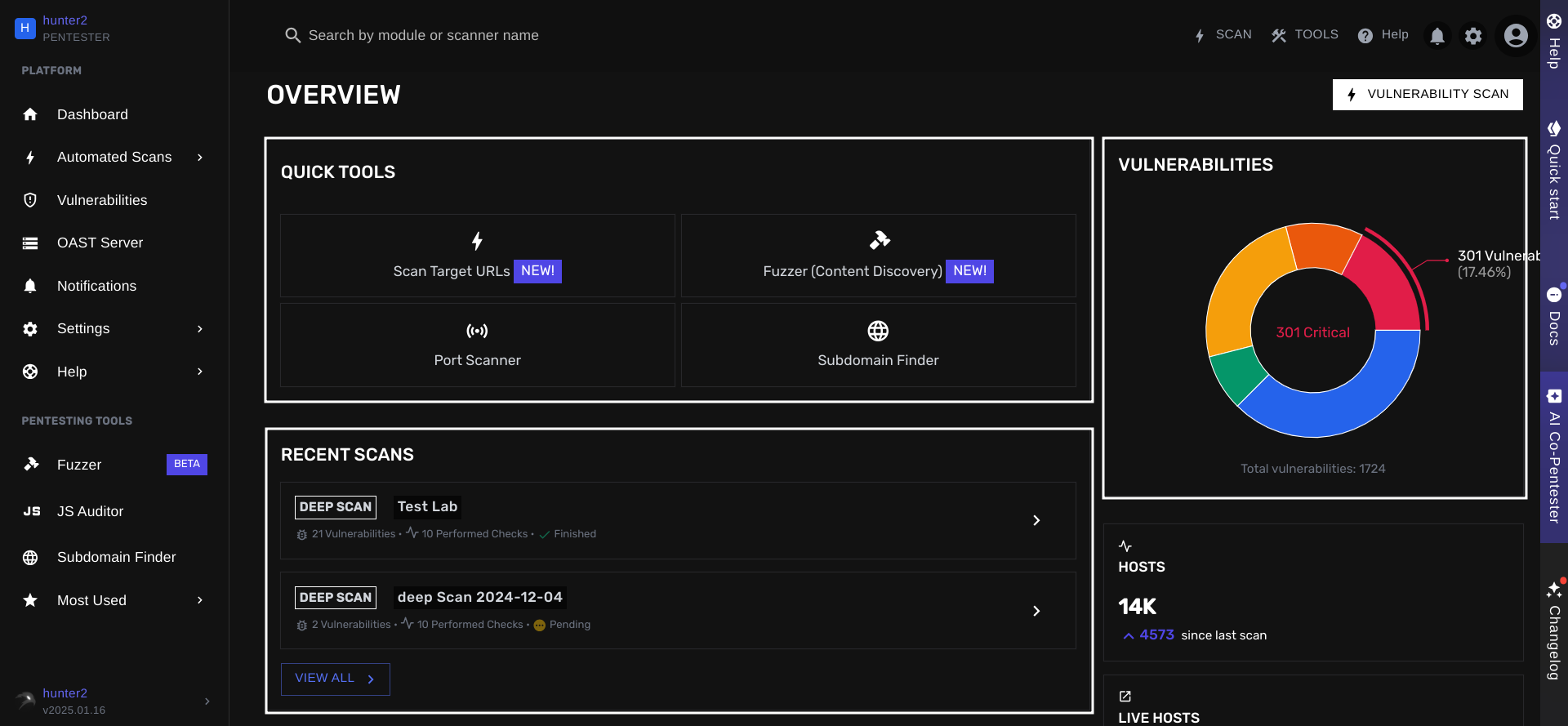
Let's take a closer look at your dashboard now. Your dashboard contains your most important views, such as:
The Quick Tools section contains 4 pentesting tools to help you get started at no time.
This Recent Scans section allows you to consult the status and results of your most recent vulnerability scans.
The Vulnerability section contains 2 simple graphs. Your total found vulnerabilities divided by severity and your vulnerabilities found over the past 3 months.
Marking the tool as favorite will make them appear in the left side navigation bar under "Most Used" section.
### Dashboard overview
Let's take a closer look at your dashboard now. Your dashboard contains your most important views, such as:
The Quick Tools section contains 4 pentesting tools to help you get started at no time.
This Recent Scans section allows you to consult the status and results of your most recent vulnerability scans.
The Vulnerability section contains 2 simple graphs. Your total found vulnerabilities divided by severity and your vulnerabilities found over the past 3 months.
 Now that you are more familiar with what BLACKBIRD is and its core components, let's take a more detailed look at how it is commonly used by our customers.