
Notifications
BLACKBIRD can be configured to deliver real-time notifications for discovered vulnerabilities, scan status changes and OAST Server invocations.Setting Up Notifications
To set up notifications, you will be required to enable them first. BLACKBIRD provides 2 types of notifications. In-App Notifications and External Notifications.In-App Notifications
In-App Notifications are available by default and can be accessed from anywhere on your Pentesting Suite or by navigating to the dedicated notifications page.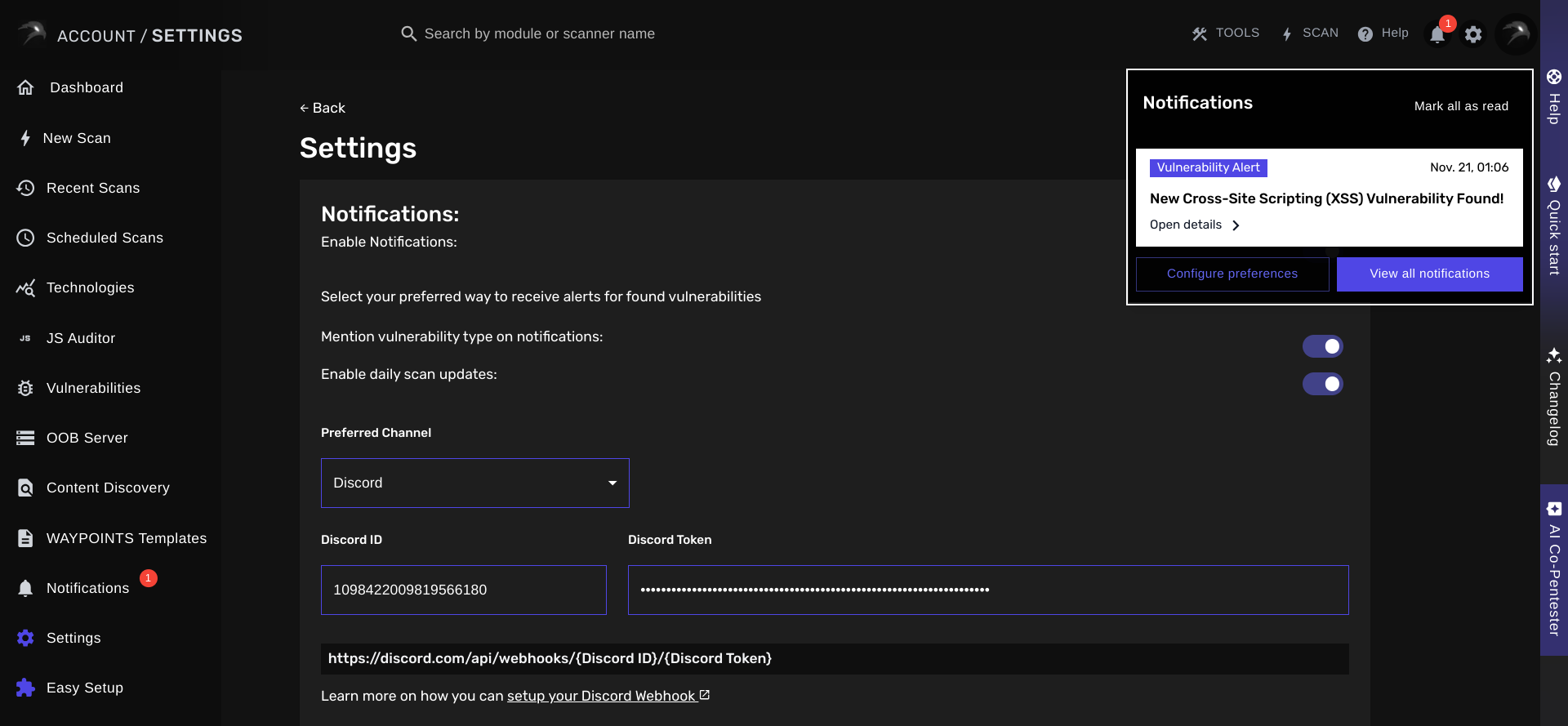
External Notifications
BLACKBIRD can also be set up to notify you on your preferred messaging channel. We currently support 4 different types of messaging channels:- Slack
- Discord
- And, Telegram
Setting Up Email Notifications
To receive notifications on your email inbox: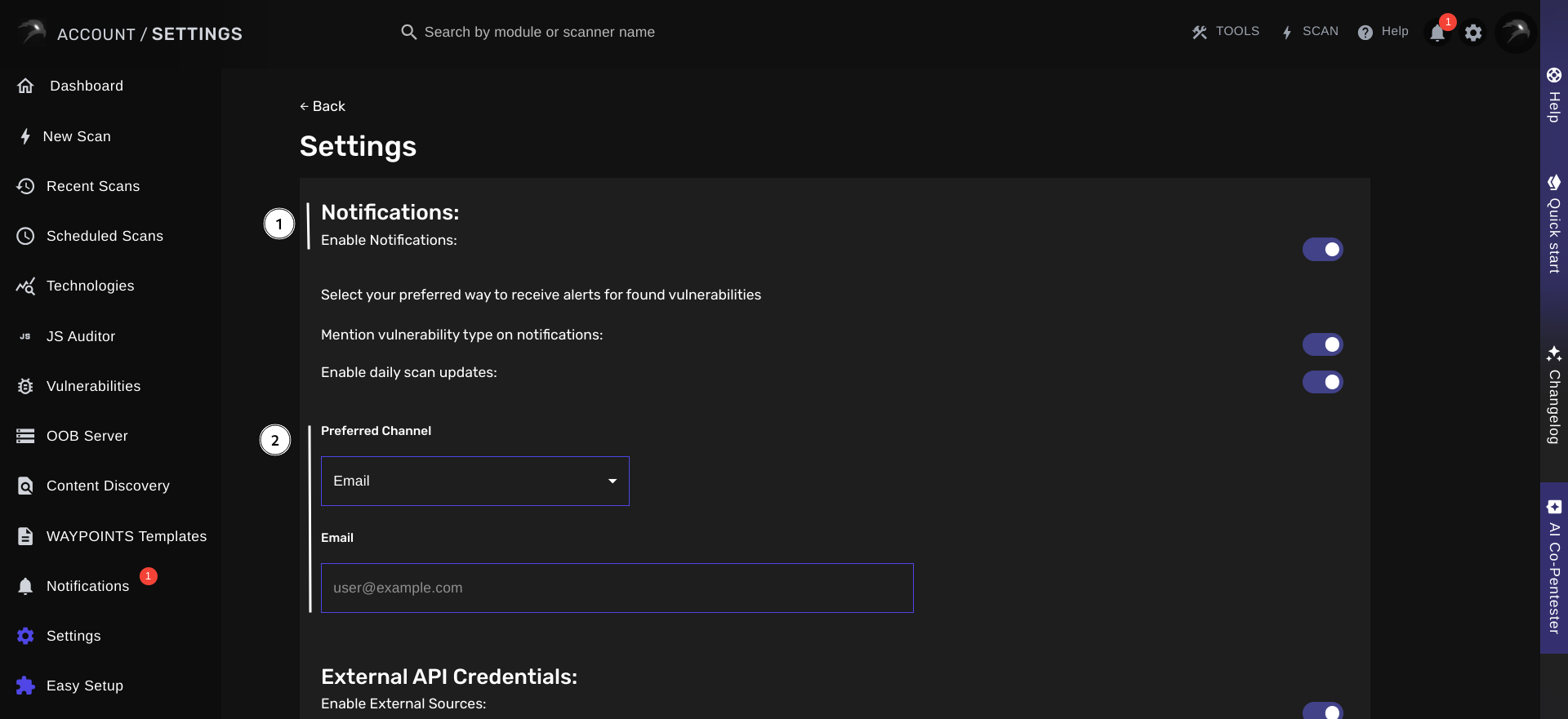
Setting Up Discord Notifications
To receive notifications on your existing Discord channel:Create Discord Webhook
Next, you must create a Discord webhook. We recommend you to follow this official guide.
Submit Your Webhook
You will receive a webhook in the following format:
https://discord.com/api/webhooks/{Discord ID}/{Discord Token}. You will have to submit the Discord ID and Discord Token in their respective fields as displayed in the figure below.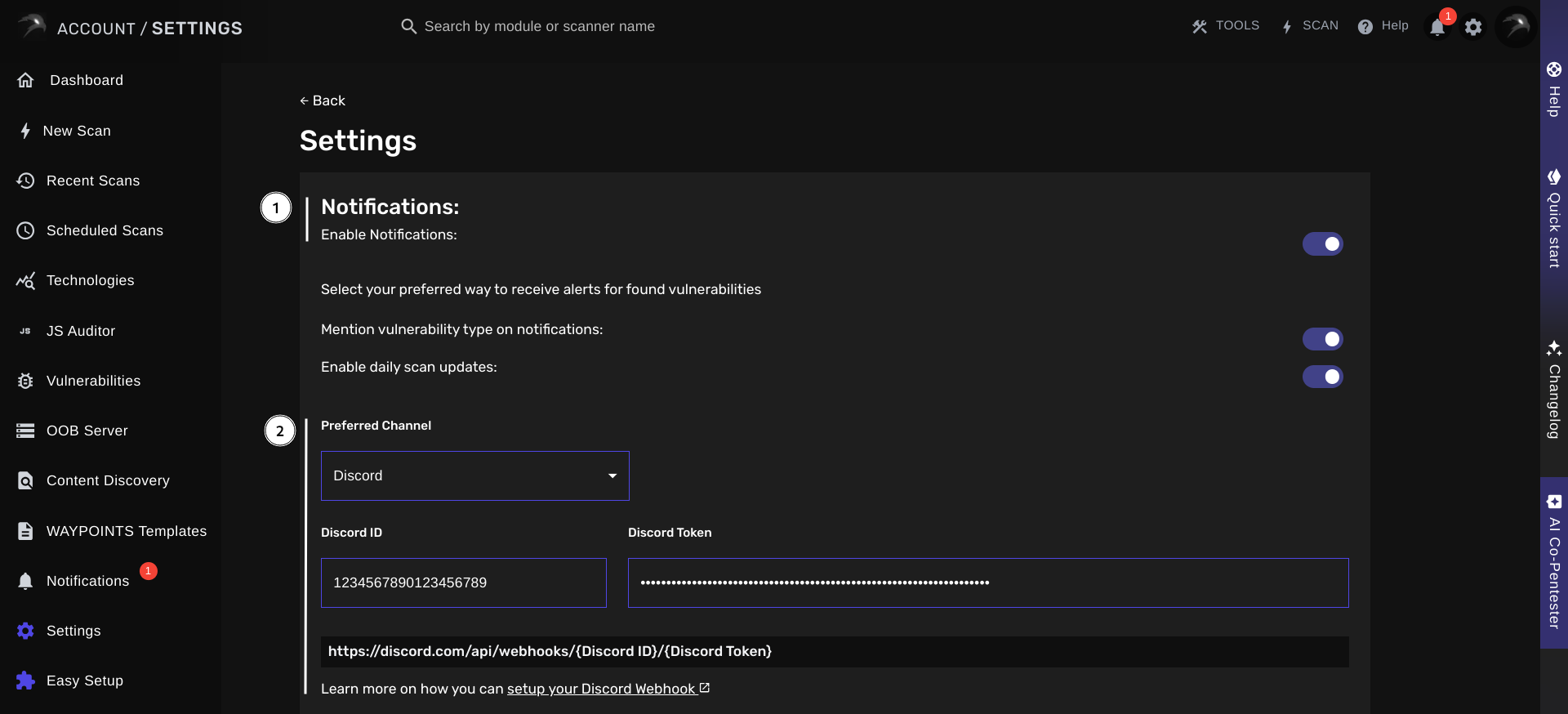
Setting Up Slack Notifications
To receive notifications on your existing Slack channel:Create Slack Webhook
Next, you must create a Slack webhook. We recommend you to follow this official guide.
Submit Your Webhook
You will receive a webhook in the following format:
https://hooks.slack.com/services/T{Slack Team ID}/B{Slack Bot ID}/{Slack Channel ID}. You will have to submit the Slack Team ID, the Slack Bot ID and the Slack Channel ID in their respective fields as displayed in the figure below.Please make sure to only enter the IDs, you do not have to prefix the Slack Team ID or Slack Bot ID with the T and B keywords.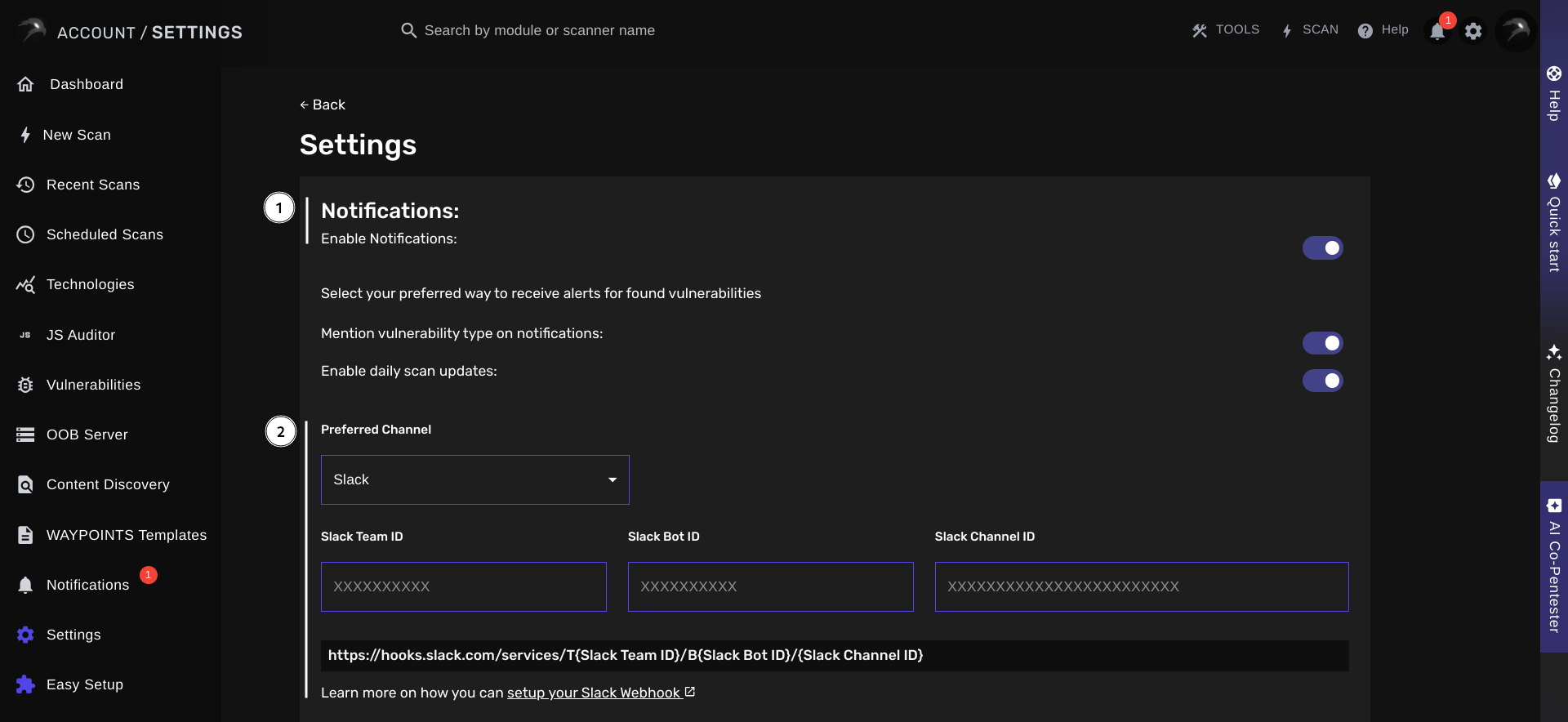
Setting Up Telegram Notifications
To receive notifications on your existing Telegram channel:Create Telegram Bot
Next, you must create a Telegram Bot. We recommend you to follow this official guide.
Submit Your Bot Credentials
You will receive a Bot Token (for HTTP API access). This Telegram token will be in the following format:
{Telegram Chat ID}:{Telegram Bot Token}. You will have to submit the Telegram Bot Token and the Telegram Chat ID in their respective fields as displayed in the figure below.Please note that your Telegram Bot Token field must be in the following format: {Telegram Chat ID}:{Telegram Bot Token}.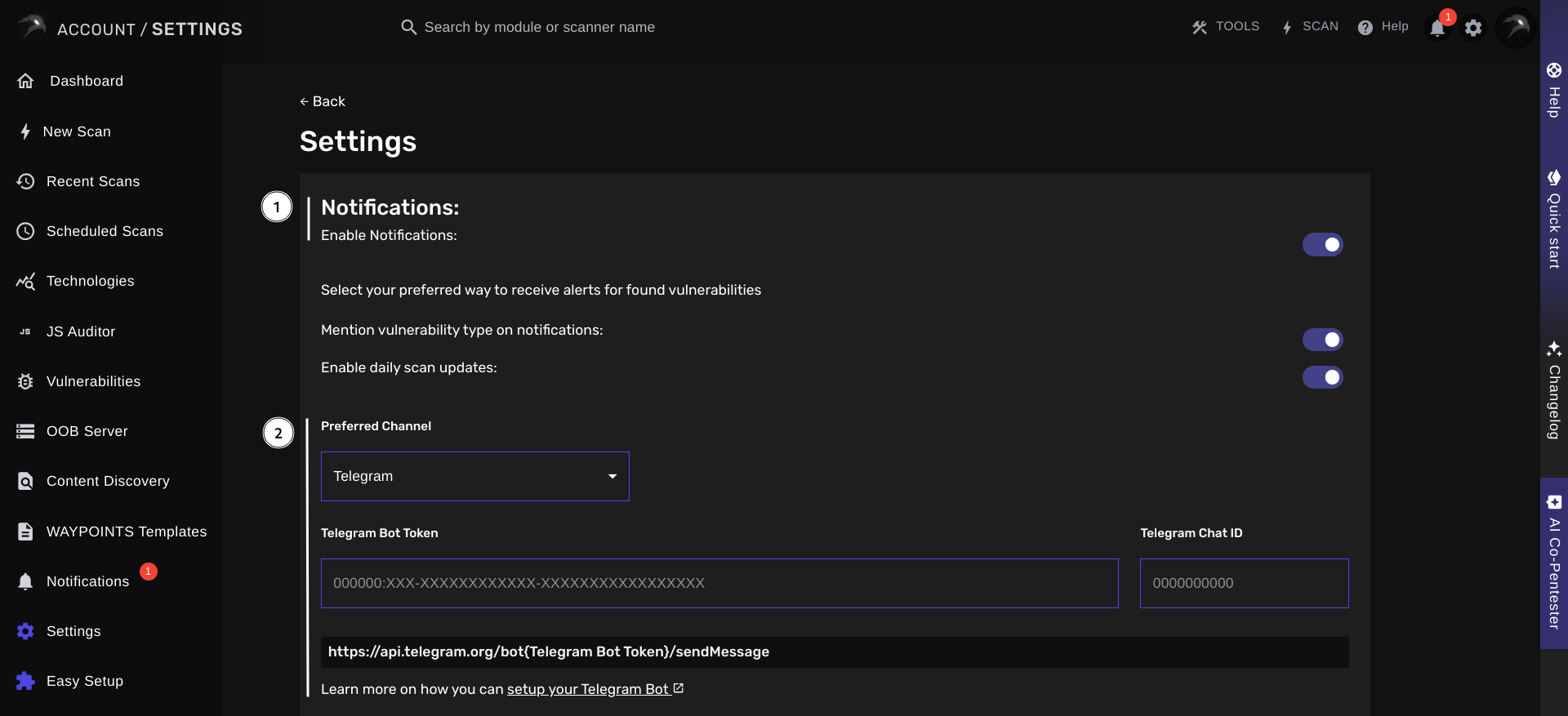
When Are Notifications Sent?
Notifications are sent on the following occassions:- When a new security vulnerability has been discovered and validated
- When a scan status changes from pending to success
- When your Private OAST server receives an invocation (for example, a Blind XSS)
- When a change was detected on any of your JavaScript file monitors
To prevent overloading you with notifications, we intentionally surpress notifications for discovered security vulnerabilities with a severity set to informative.